ChatGPT Desktop App: How to Use AI Without a Browser
The ChatGPT desktop app is an official application that lets you use AI directly without a web browser. You can instantly invoke it from anywhere with the Alt + Space shortcut, and download it for free from the Windows Store.
Using ChatGPT typically requires opening a browser and finding the right tab, which can be inconvenient. There's a solution to this problem. By installing the ChatGPT desktop app, you can summon AI instantly with a single keyboard shortcut. It's available for free download from the Windows Store and works on Windows 10 or later.
Installation
Search for 'ChatGPT' in the Windows Store to find the official OpenAI app. It's free to download, and after installation, you can start using it immediately by logging in with your OpenAI account.
The app runs in the background, waiting for shortcut activation. An icon appears in the system tray, and you can configure it to start automatically when your computer boots.
Instant Access with Alt + Space
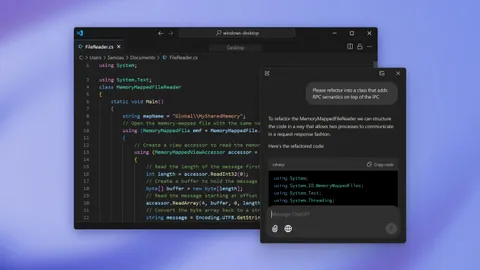
The app's core feature is shortcut activation. Press Alt + Space to bring up a small chat window on your screen. OpenAI calls this the 'companion window.'
You can invoke it while using other programs. If you have a question while working on a document, press Alt + Space to ask, check the response, and immediately return to your work. There's no need to switch between browser tabs, so your workflow remains uninterrupted.
If the shortcut conflicts with other programs, you can change it in settings. Go to Settings > App > Companion window hotkey to customize your key combination.
Key Shortcuts
| Shortcut | Function |
|---|---|
| Alt + Space | Open/close chat window |
| Ctrl + N | Start new conversation |
| Ctrl + K | Search conversation history |
| Ctrl +/- | Adjust text size |
Ctrl + K lets you search previous conversations, which is useful when you need to find something you asked before. Conversation history syncs with the web version, so you can continue conversations started on the web in the app.
Screenshots and File Attachments
You can take screenshots and attach them directly to conversations. It integrates with Windows Snipping Tool, allowing you to capture selected areas.
Webcam capture is also available. This is convenient when showing physical objects while asking questions or quickly sharing documents. Regular file attachments are supported as well.
The Easiest Way to Summon AI with a Single Shortcut
The ChatGPT desktop app's advantage is simple: it lets you summon AI with a shortcut, without opening a browser. If you use ChatGPT frequently, installing it will make your experience much more convenient.